

Clients earn points when their ticket is paid, by the rules of their loyalty program, and spend them as a payment on a later visit. Loyalty Rules let you give extra points on chosen days, for cash or other payments, and decide what points are worth.
Background
Points give clients a reason to come back. Two screens set them up, both under MENU > Back Office > Loyalty: Loyalty Programs decides how points are earned, and Loyalty Rules decides the daily multipliers, what points are worth and when balances reset.
How it fits together
- Programs. Tap Add New and choose a Program Type: Amount Spent for Loyalty Points (for example 1 Dollar Spent = 1 Point), Loyalty Points for Each Visit, or Price Range for Loyalty Points (up to 5 price levels). Amount and visit programs take a Minimum Spend, and Bonus Points can add more for bigger tickets. Mark one program Default: it is used for clients without a program of their own.
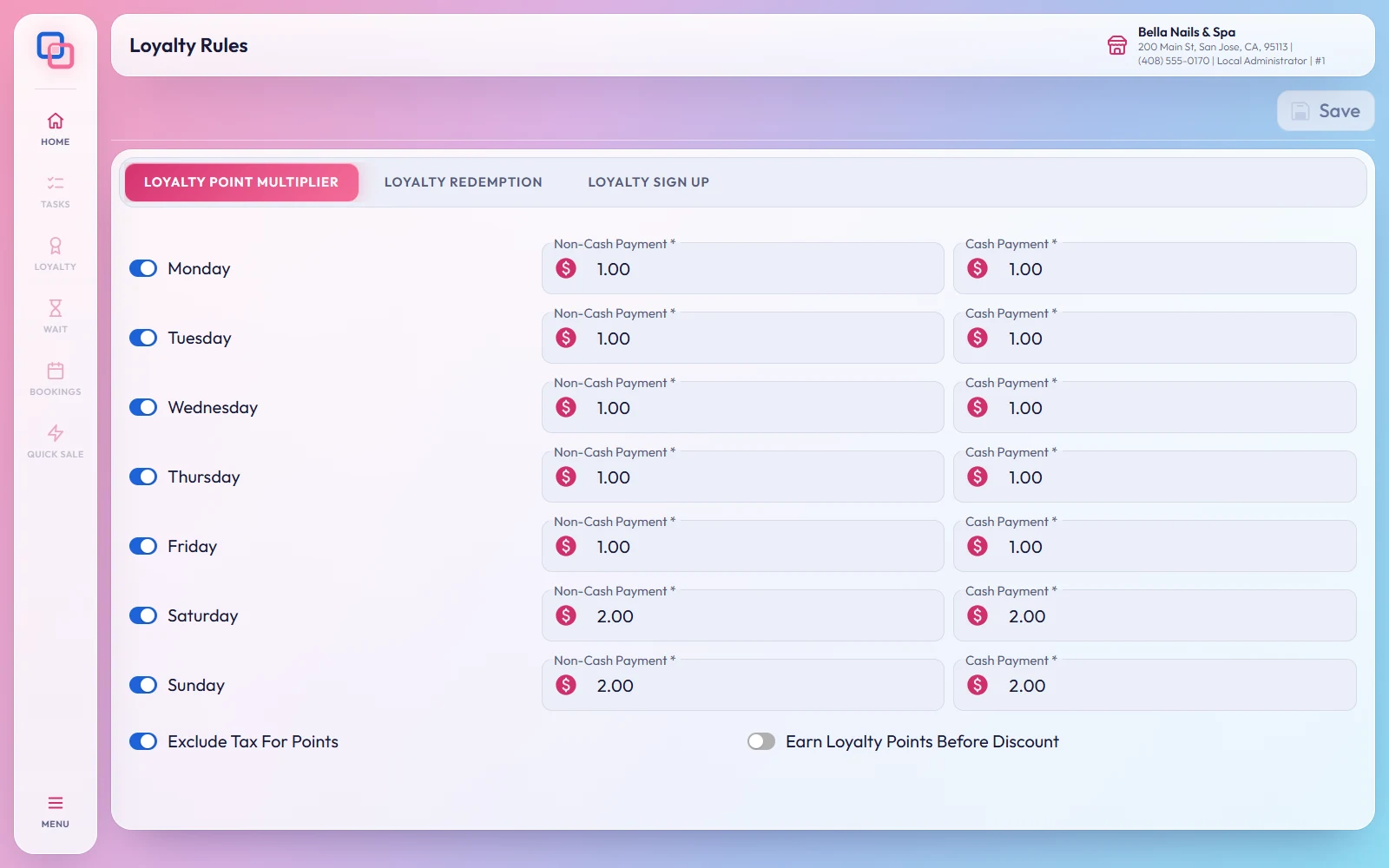
- Earning. Points are added when the ticket is paid and closed. Tips, gift card sales, payments made with points and items with Loyalty Points turned off do not earn. Tax counts only if Exclude Tax For Points is off. If a paid ticket is reopened, its points are taken back.
- Points by day. On the Loyalty Point Multiplier tab of Loyalty Rules, switch on a weekday and set a multiplier for Cash Payment and Non-Cash Payment. With 2 as Tuesday's cash value, cash spending counts double on Tuesdays.
- What points are worth. On the Loyalty Redemption tab, choose the Redemption Type. Fixed converts points at one rate, such as 100 Points = 5 Dollar, or a percent off with Percentage. Range gives up to 10 reward levels, each with its points and minimum spend. Points Shown to Customer and Amount Shown to Customer are what the check-in tablet shows and must match your rate. Loyalty Redemption Commission Type decides whether the owner or the technician absorbs the reward.
- Redeeming. With a client on the ticket, tap the loyalty payment button on the payment screen, pick a reward and tap OK. When a client's balance reaches the number in Popup for Loyalty Redemption at Payment (Minimum Points), EraPOS asks "Customer is eligible for a reward. Do you want to redeem now?" as you start the payment.
- Resets. On the Loyalty Sign Up tab, Auto Reset Points sets a balance back to zero when it reaches the Reset Threshold, and Auto Reset Points By Inactivity does so after the Inactivity Reset Days without a visit.
- Checking a balance. Tap LOYALTY on the side rail, choose LOYALTY, enter the client's 10-digit phone number and tap SEARCH to see their balance, first and last visit, and every ticket that earned or used points. Points change only through tickets.
- At the door. The check-in tablet can show a client's points and what they are worth, and its Wheel of Fortune prizes are honoured on the ticket.
Note
Loyalty settings are protected: depending on how your store is set up, EraPOS asks for an employee password or for administration to be unlocked before you save. See Protected settings and unlocking administration.
Further reading
- Customer profiles - each client's program and balance
- Gift cards: questions and answers - selling, checking and paying with gift cards
- Set up the check-in tablet - points and prizes at the door
- Which report to use - the Loyalty report