

Every client has a profile with their contact details, birthday, notes, loyalty points, past tickets, services, appointments and ratings. Open the list from TASKS > Customers, or find a client by phone right on the ticket.
Overview
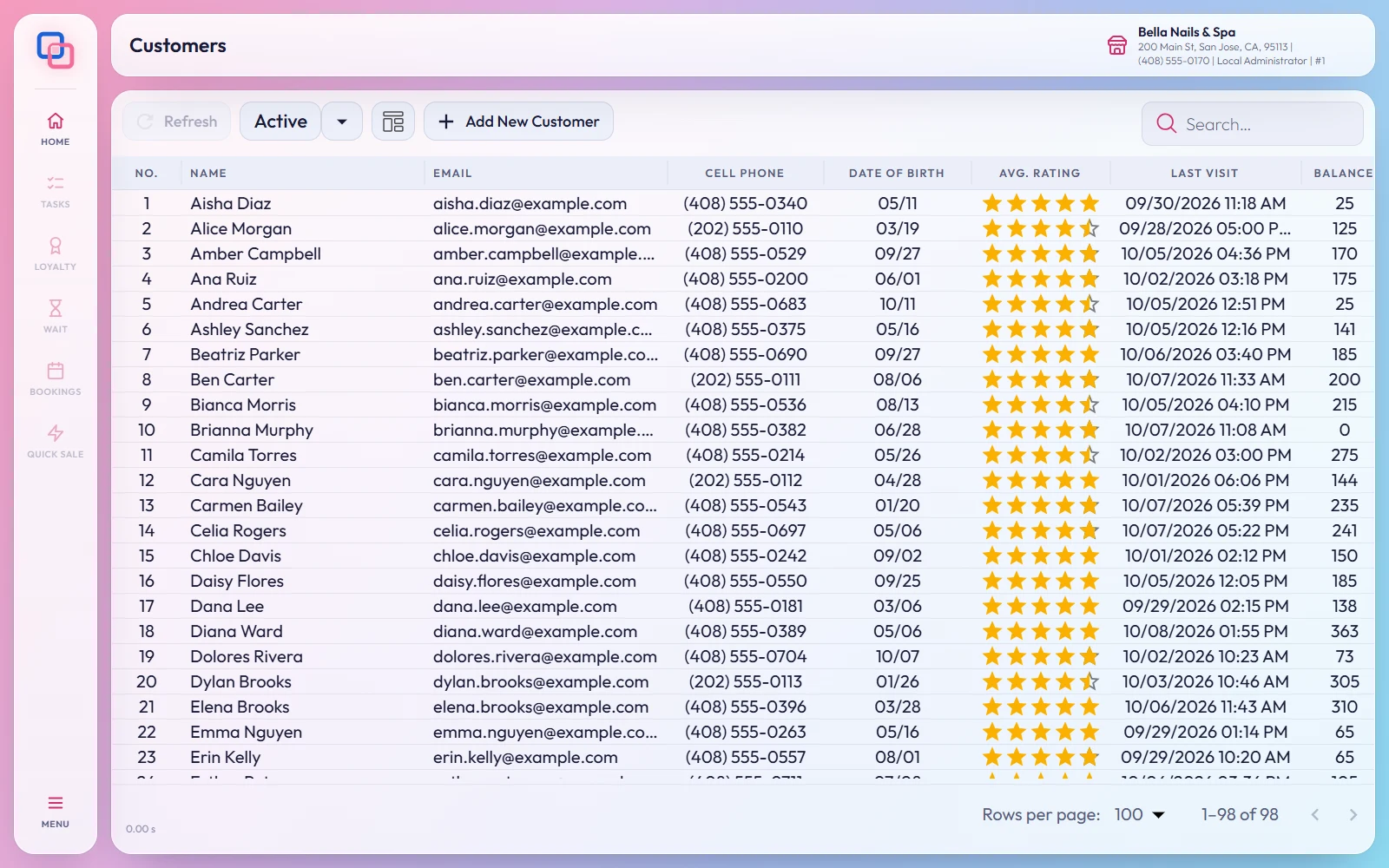
Tap TASKS on the side rail and choose Customers. The list shows each client's Name, Email, Cell Phone, Date Of Birth, Avg. Rating, Last Visit, points Balance and No Show count. Type a name, phone number or email in the search box; a full 10-digit number finds that exact phone. The status filter shows Active clients unless you choose otherwise.
Add a client
Tap Add New Customer. Fill in First Name and Cell Phone (both required), and if you like Last Name, Email, DOB (day and month), Gender, Loyalty Program and Notes, then tap Save. Clients are also added when they sign up on the check-in tablet or book on your website.
The profile
Double-tap a client, or tap the edit icon in their row, to open their profile. It opens read-only: tap Edit to change something, then Save. The tabs are:
- INFORMATION: name, phones, email, birthday, address, Notes, points balance and loyalty program, Total Spent, Total Visit, first and last visit, no-show and cancel counts, and the Unsubscribe Email, Active and Unpaid switches.
- TICKETS: every ticket with date, number and total. Tap one to see its receipt.
- SERVICES: each service received, with the date, ticket, technician and price.
- APPOINTMENTS: past and upcoming appointments with their status.
- REVIEWS: the stars and comments the client gave their technicians.
Technicians can add a dated note for a client they served from the EraPOS Hub app; it appears under the client's notes.
At the register
On a ticket, tap Select customer and type a phone number or name. If nobody matches, Click Here To Add Customers opens a new profile with the number already filled in. The client's points show under their name. On their birthday, a HAPPY BIRTHDAY greeting appears when they are added to the ticket, and OK opens the ticket's discounts when it has items that can be discounted.
- Avg. Rating
- The average of the stars the client gave, from the receipt's QR code, the rating email or the check-in tablet.
- Unpaid
- The client owes from an earlier visit. EraPOS warns you when they are added to a ticket or the waiting list.
- Masked contact details
- Staff whose role cannot see contact details see phones as (***) ***-4567 and emails as ******.
- Delete
- In the list's actions. A client with tickets, appointments or waiting entries cannot be deleted; set them inactive instead.
Last reviewed October 2026. Tell us if something is out of date.