

Clients check in on their own phone: a sign at your door with an NFC sticker and a QR code opens your check-in page. No app, no tablet, and the arrival reaches the Waiting List within a minute.
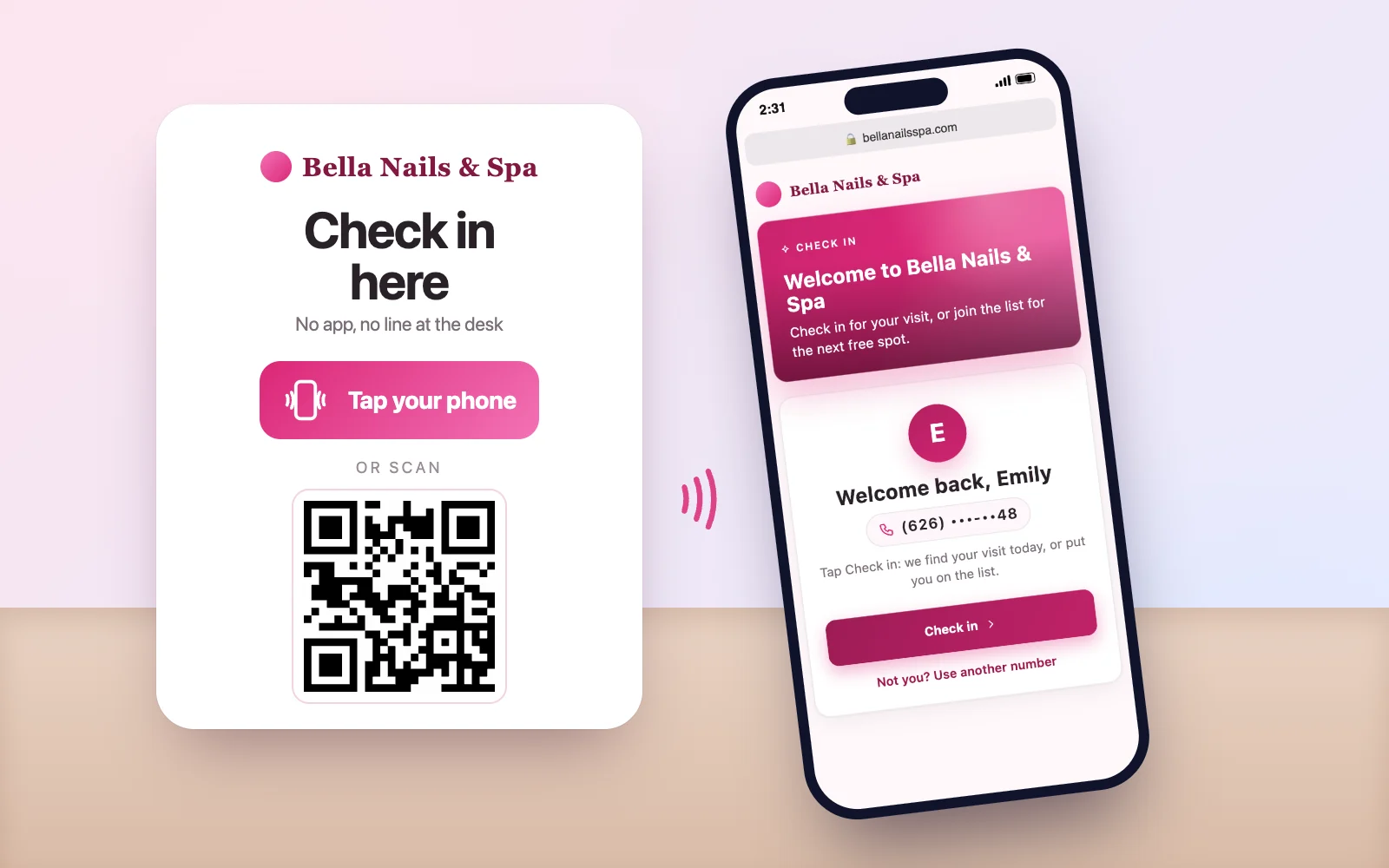
What the client does
- They tap their phone on the sticker on your door sign, or scan its QR code with the camera.
- The check-in page opens in their browser, in your salon's name. They type their mobile number (a phone they used before already knows them: one tap, Check in).
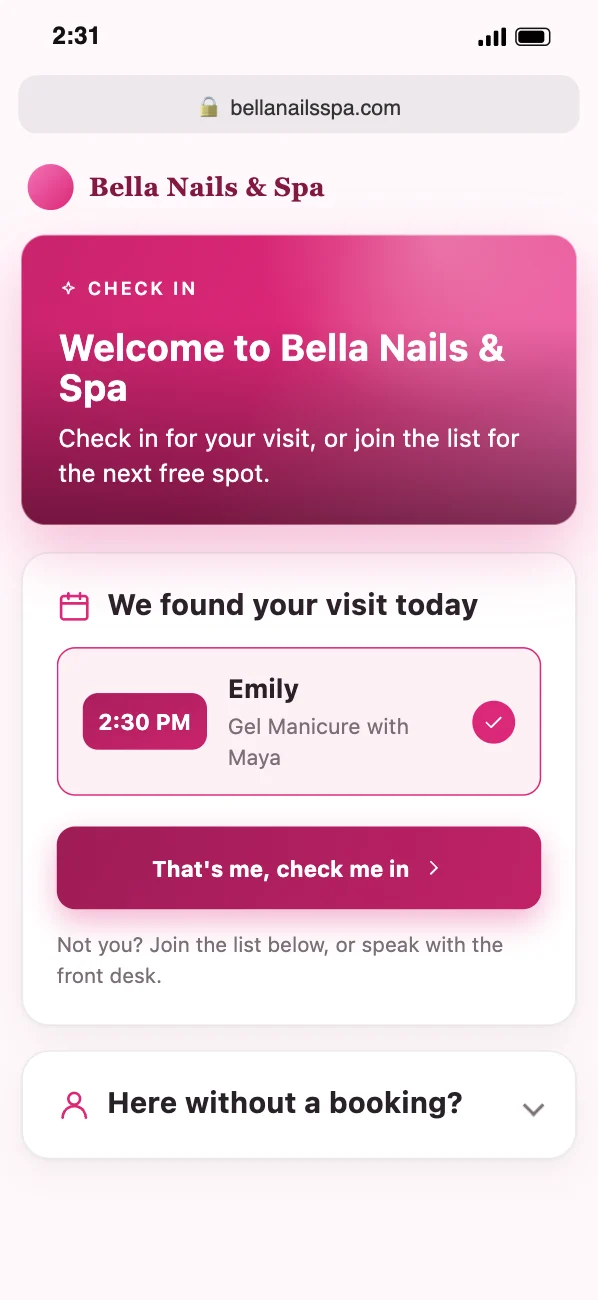
- With a booking today, they see it and tap That's me, check me in. Without one, they enter their name, choose their services if they like, and tap Join the list.
- They are told the front desk knows they are here. If they are already on the list, they are told that too.
What the front desk sees
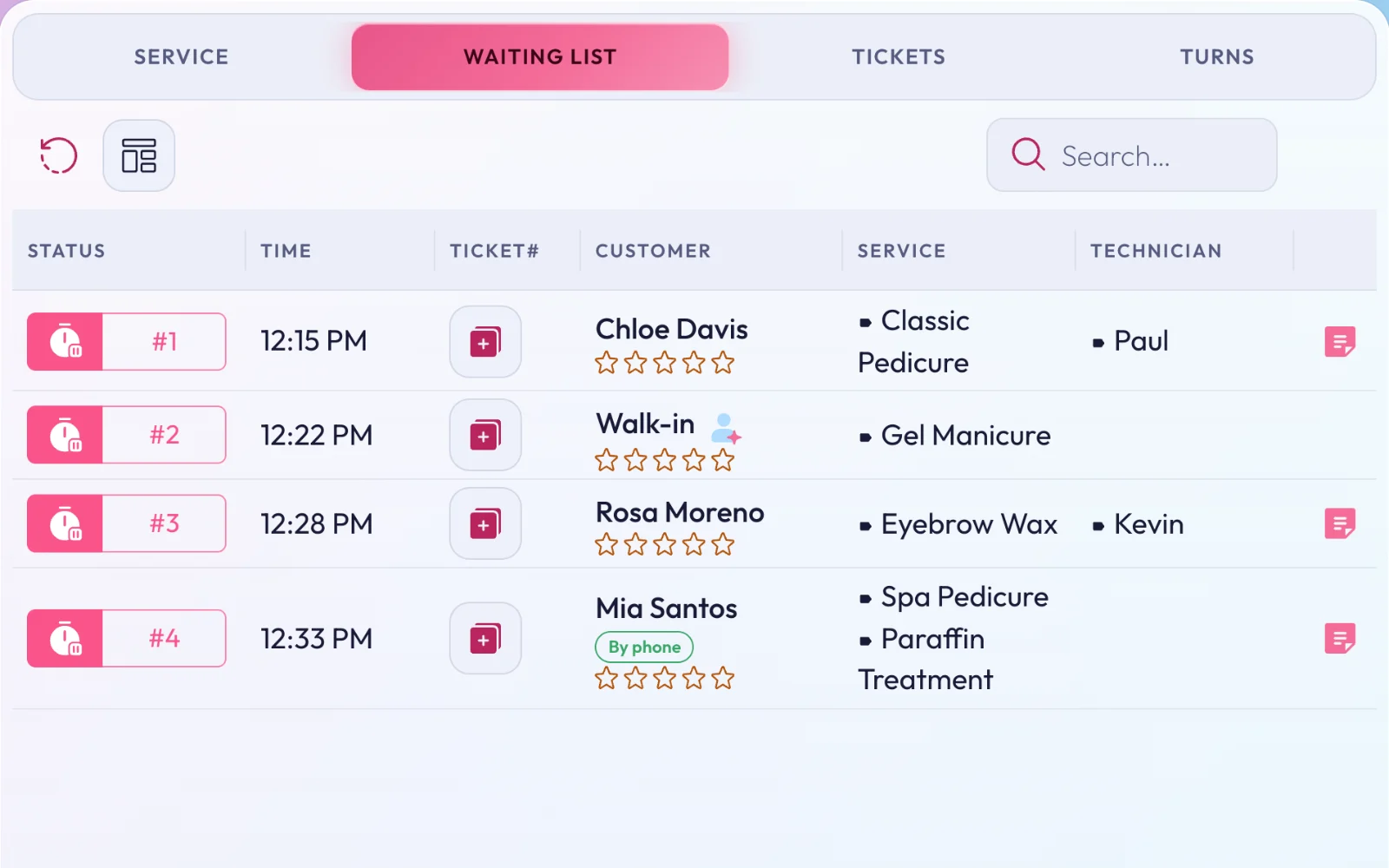
Within a minute the arrival is on the WAITING LIST tab of the Service Board, like a tablet's check-in, with a green By phone label under the phone number. A booked client comes with their visit; a new client is added to Customers with their name and number. Each check-in arrives once, even if the store computer was off for a while.
Set it up
- In WBAMS, open POS › Check-in tablets › Check in by phone and switch it on. Choose whether clients must enter a code sent by text first.
- Print the sign with the QR code from that page.
- Write the sticker's address onto an NFC sticker (NTAG213 or NTAG215) with any free phone app, and put it behind the sign.
Make a new address on that page stops every printed sticker and sign from working: only use it when you replace them.