

The waiting list shows everyone who has arrived and is not in the chair yet: clients who checked in on the tablet, walk-ins added at the front desk and appointments that have arrived. One tap turns an entry into a ticket.
Overview
Open the WAITING LIST tab on the Service Board. The Waiting card at the top tells you how many clients are waiting. By default the oldest arrival is at the top.
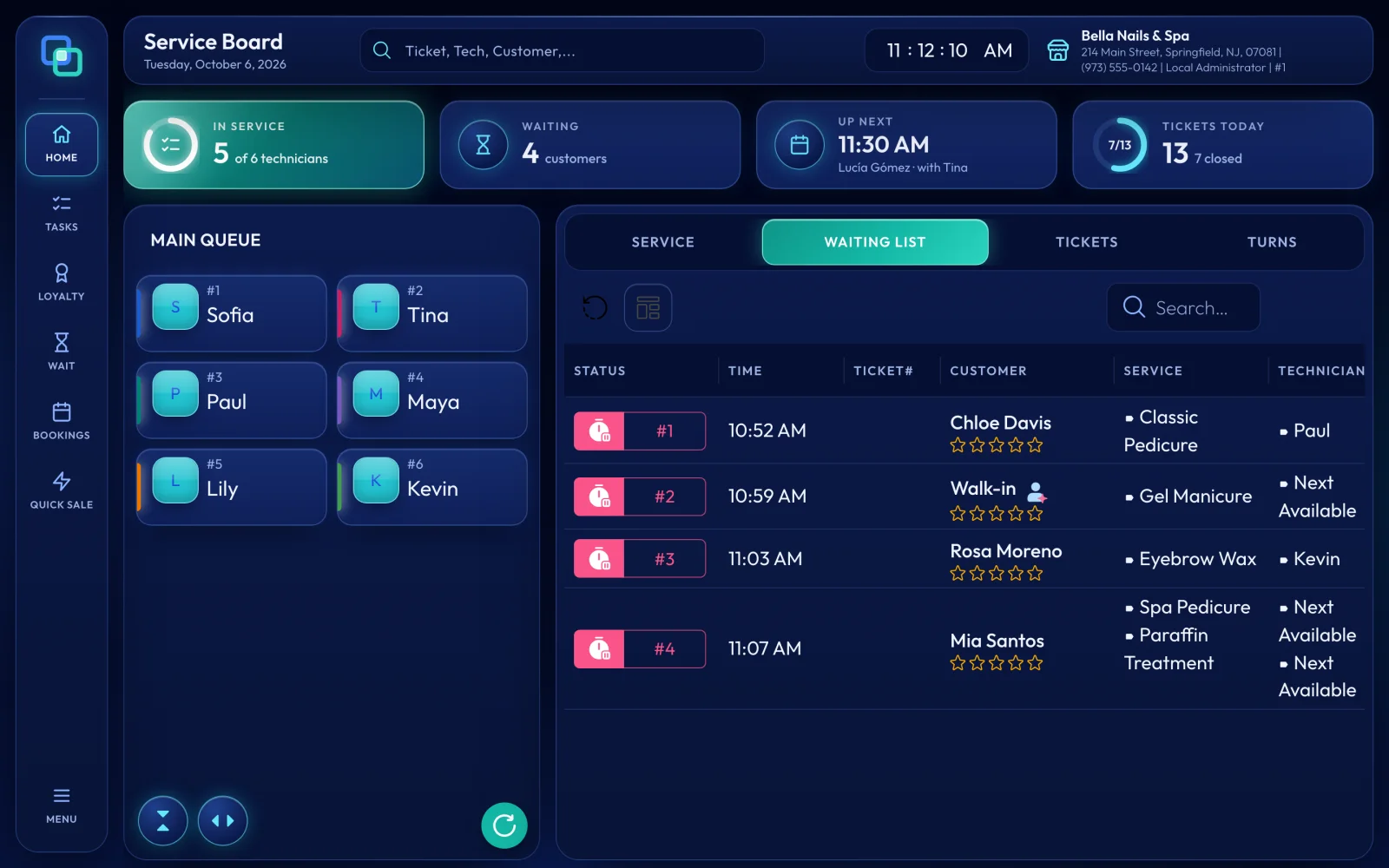
What each row shows
Status with the waiting number, Time (when they arrived), Ticket# once a ticket exists, Customer, Service and Technician. The customer cell can also show a new-client mark, the client's star rating, Unpaid Tickets when they owe from an earlier visit, and in green any prize won on the check-in tablet's Wheel of Fortune. Appointment arrivals are tinted and marked Appt.
Add a walk-in at the desk
Tap WAIT on the side rail. On Create Waiting, search the client by phone number or name, or tap CLICK HERE TO ADD CUSTOMER. Choose services on the right: each category starts with a Next Available Service tile for clients who just want the category, and tapping a service lets you pick a technician or Next Available. Tap SAVE. If the client is already waiting today, EraPOS tells you instead of adding them twice.
Turn an entry into a ticket
Tap the row to open its actions and choose Create Ticket. EraPOS creates the ticket with the services in service, and the entry moves to In Service. Services left on Next Available go to the employee chosen as the default for the waiting list, who must be clocked in. The same actions include Edit, Print and Delete. Delete asks you to confirm and works only while the client is still waiting and has no ticket.
Waiting times and history
The list shows the time each client arrived. For the history, open MENU > Logging > Waiting Log: each arrival on the dates you choose, with what happened to it (Waiting, In Service, Done, Paid or Removed). MENU > Reports > Waiting List shows each visit's start and end times, clients per day and services done by each technician.
- Waiting number
- The number on each arrival. Entries made at a register are numbered by station, such as 1-3; check-in tablet arrivals by the tablet's station, such as 3-1, or K-1 when the tablet has no station number.
- Next Available
- The client is happy with whichever technician is free.
- Wait, In Service, Done
- Where the entry is: still waiting, being served on a ticket, or finished.
- Appt
- The arrival is linked to one of today's appointments.
- Default waiting list employee
- The employee with Waiting List turned on under Default to in their employee record. WAIT needs one.
Last reviewed October 2026. Tell us if something is out of date.