EraPOS Hub puts a technician's day on their phone: today's earnings, appointments, their place in the turn queue, pay slips, the time clock and the salon's notifications, in English or Spanish. Everything comes from the salon's POS, so the figures match the registers.
What it does
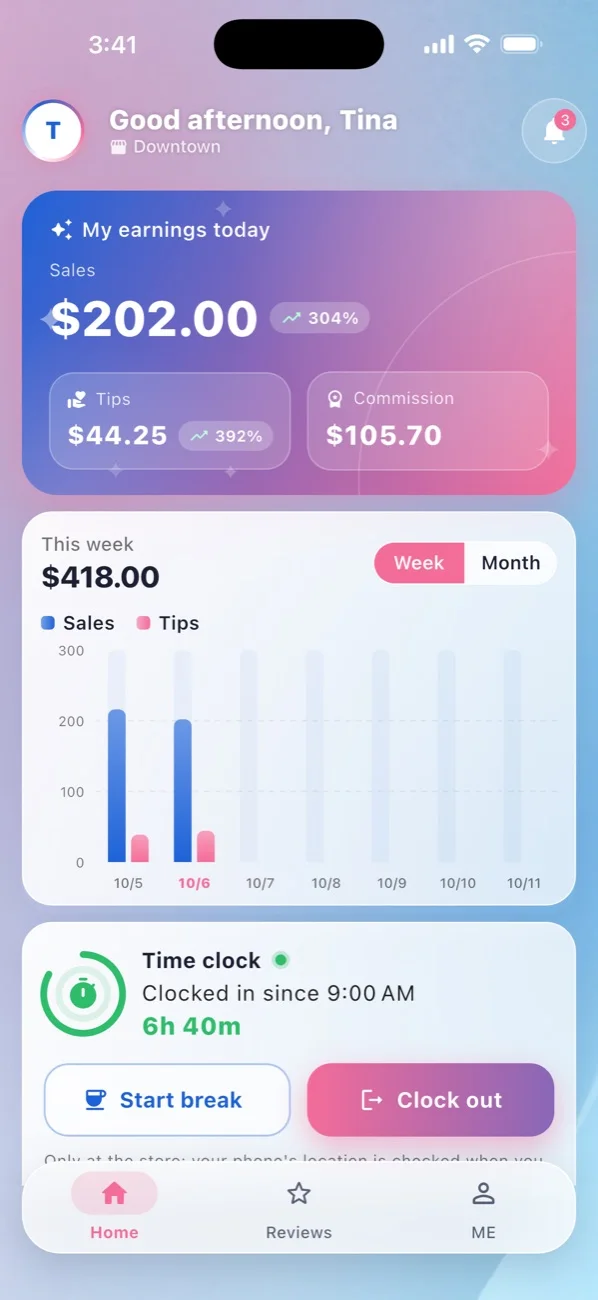
- My earnings today: your sales and tips, and your commission unless the owner hides it, each with an arrow against the same day last week. Below it, a Week or Month chart of sales and tips.
- Time clock: Clock in, Start break, End break and Clock out from the phone, at the store only.
- Appointments: your week or month, with tabs for All, New, Check-in, Completed and Blocked, and round buttons to block time or book a new appointment. The store's POS checks the store's hours before it confirms.
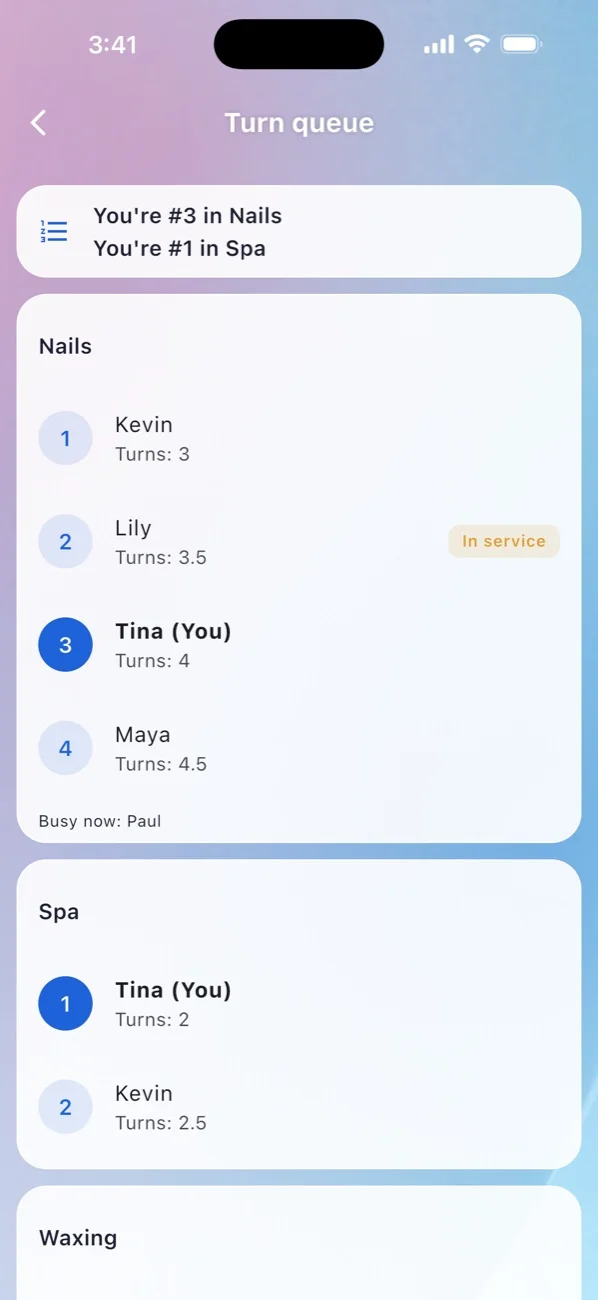
- Turn queue: your place in each queue group, with who is in service, refreshed every 15 seconds while the screen is open.
- Payroll, Work Order and Employee Sales: the same slips the POS prints. Choose the days and tap Load.
- Tickets, Reports, the Customers you served (visits, birthday, notes, and a note of your own), your Schedule with time-off requests, and Announcements from the owner.
- The Reviews tab: the ratings customers gave you, with your average.
- The bell: new or moved appointments, You're next and Your turn from the queue, time-off decisions, new ratings, and the POS's answer to what you asked from the app.
Where to find it
The app has three tabs at the bottom. Home shows your earnings, the chart and the time clock, then the tiles for everything else. Reviews holds your ratings. ME holds your profile photo, Lock EraPOS Hub, the Theme (Pink, Glow or Burgundy), the Language and Sign out. If you work at more than one store, the store icon at the top switches between them. Your owner turns the app on for you first; see Get EraPOS Hub and sign in.
Tips
- Pull down on Home to refresh it. The bell and your figures update when you open the app or refresh.
- To clock in from the phone, turn on Location and allow EraPOS Hub to use it. The app reads your location only at that tap. If it says you are too far from the store, clock in at a register.
- When you clock in, block time or book an appointment, the app sends it to the store's POS and shows the answer as soon as the POS replies. If the POS does not answer, check with the front desk that it is on.
- Turn on Lock EraPOS Hub in ME, so the app asks for Face ID, your fingerprint or your phone's passcode when you open it.
- Ask for time off in Schedule with Ask for time off, when your salon takes requests from the app. The owner's decision arrives in the bell.
Note
The app shows what your owner chooses to show staff, so some amounts, such as commission, may be hidden. Your hours and pay come from the store's POS: if something looks wrong, ask your manager to check the ticket or the pay period.