

EraPOS works out each employee's pay from the tickets they served and the hours they clocked. Use Quick Payroll to print pay slips for a period in a few taps, and Payroll for the detail behind every figure. You then pay your team the way you do today.
Before you start
- A password whose role has the Payroll permission, such as the owner's.
- Each employee's pay set on the Compensation Info tab of their profile.
- Technicians named on every service they did, and hourly staff clocked in for their shifts.
- A receipt printer, if you want printed slips.
Set how each person is paid
In MENU > Back Office > Employees, open an employee and go to Compensation Info. Choose a Payroll Type: Commission, Hourly or Base (on each day clocked in, the larger of that day's commission and the base pay). Under Commission, set a percent for each service department. Hourly staff are paid the regular and overtime rates of their position, or their own rates when Specific Hourly Rate is on. Check and Cash split the pay into Pay 1 and Pay 2 (they always add up to 100%), and Credit Card Fee takes a share of card tips to cover processing.
Print pay slips with Quick Payroll
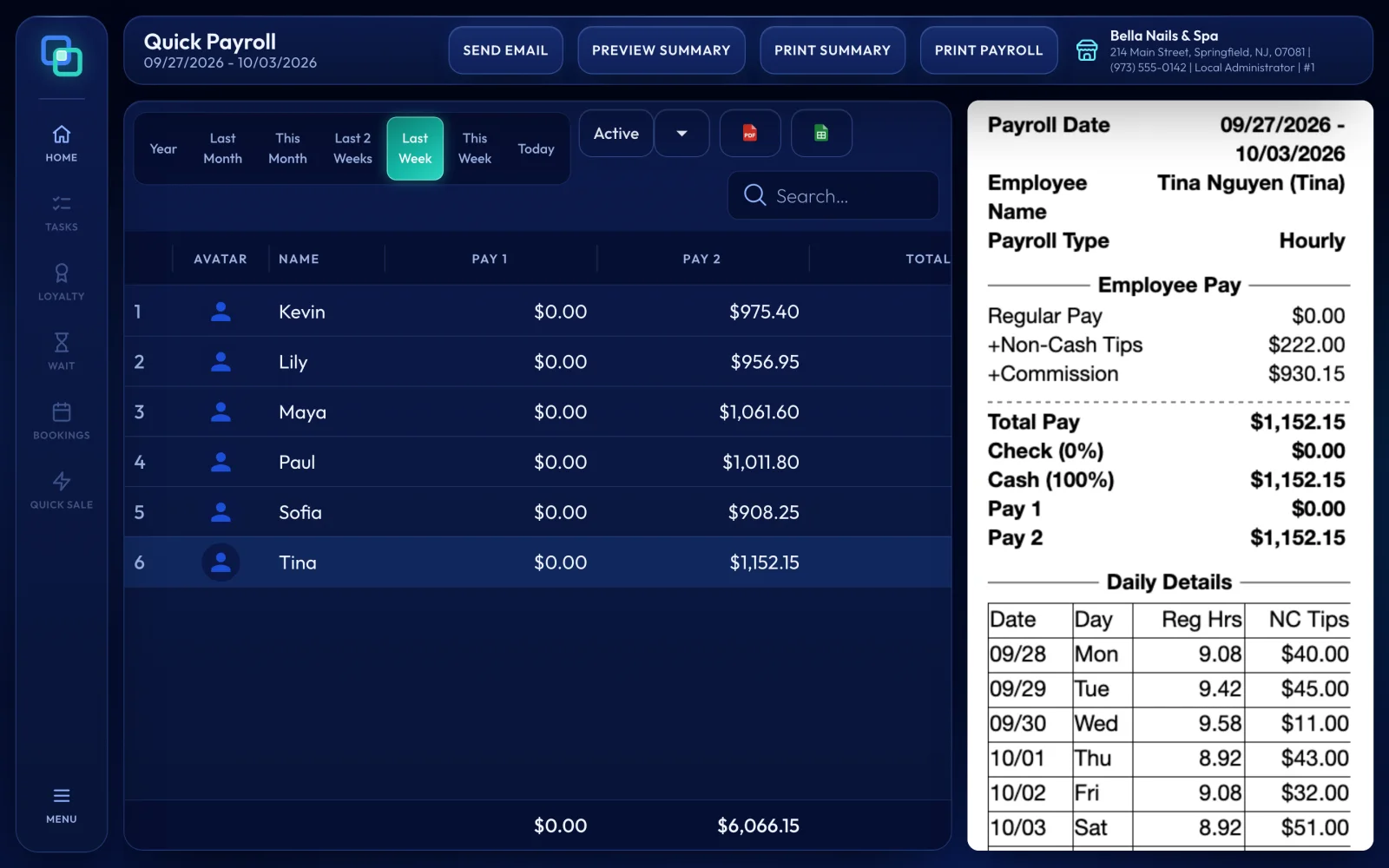
Open MENU > Manager > Quick Payroll and enter your password. Pick a period: Today, This Week, Last Week, Last 2 Weeks, This Month, Last Month or Year, or tap the dates under the title for any range. The list shows each employee's Pay 1, Pay 2 and Total; tap a name to see their slip on the right. Print one slip with the printer icon on its row, or press PRINT PAYROLL and choose Print All Employees or Print All Employees Exclude $0. PREVIEW SUMMARY and PRINT SUMMARY give one slip with everyone's totals.
See the detail in Payroll
MENU > Manager > Payroll shows how each figure was reached. Choose the dates and an employee, then press the search icon. SINGLE PAYROLL shows one employee, as an owner's report (Owner View) or as their slip (Employee View). SUMMARY PAYROLL lists everyone's sales, non-cash tips, Pay 1, Pay 2, total and gross profit. PAYROLL DETAILS lists every item an employee sold with its commission. Export the lists to PDF or Excel, or use Print for slips.
How the numbers are worked out
Commission is worked out when each ticket closes: the department's percent of the service's net price, plus any product commission. Non-cash tips are shared by each technician's part of the ticket, unless you split them by hand, and the card fee is taken off. Hourly pay is added for hourly staff, and for commission staff who have Add Hourly Pay To Commission on. Pay 1 is the Check share of the total, and Pay 2 the rest.
Pay stubs on the phone
Technicians with EraPOS Hub see their earnings and a pay stub for each pay period on their phone, and you choose what staff see from the app in Owner mode. See EraPOS Hub for technicians.
Result
Every employee has a slip for the period with their sales, commission, tips and pay, and you have a summary to pay from. Change a print layout in MENU > Administration > Print Settings (tabs Payroll and Quick Payroll).
Last reviewed October 2026. Tell us if something is out of date.