

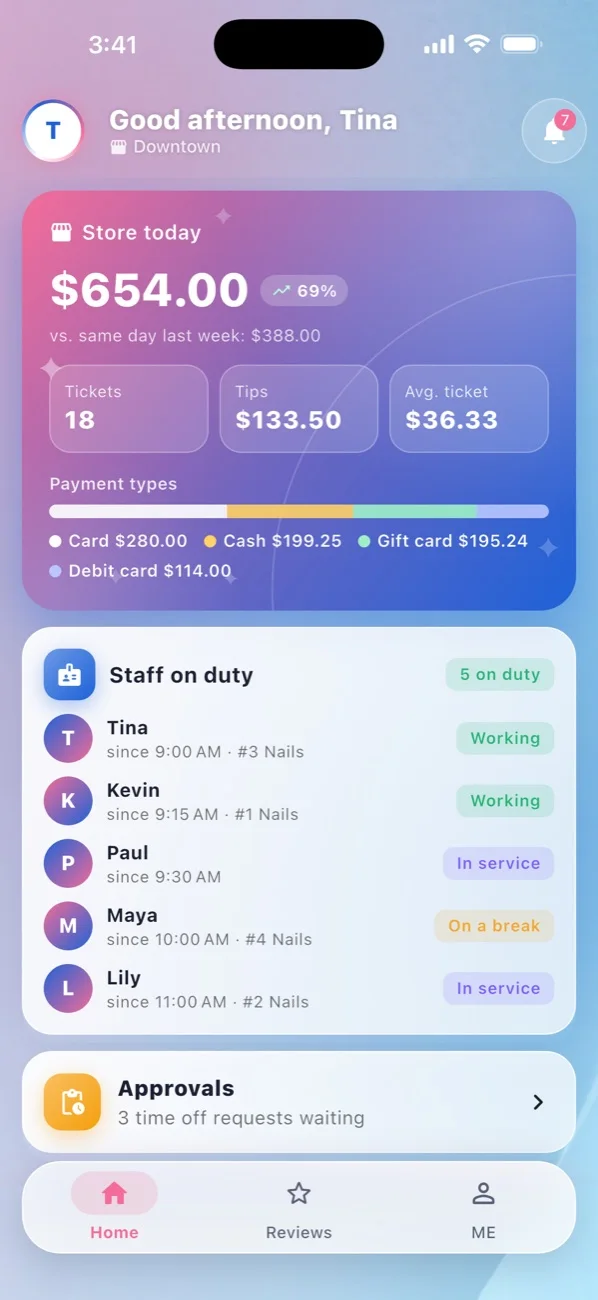
In Owner mode, EraPOS Hub shows the store today against last week, who is on duty, time off waiting for you, the end-of-day report and alerts, for every store you own. You can also approve time off, move appointments and choose what your staff see.
Background
Owner mode is the same app with more on it. It is turned on with EraPOS Hub (Owner) on the person's Mobile Access tab in the POS, and an owner can be signed in on two devices, such as a phone and a tablet. Like the technicians' view, everything comes from the store's POS: the app shows the store's own figures and sends your changes back to the POS, which checks them before they take effect.
How it fits together
- Store today, at the top of Home: sales against the same day last week, tickets, tips, average ticket and payment types. Below it, Your stores lists your other stores, and Staff on duty shows who is working, on a break or in service, and their place in the queue. Time off waiting for you appears under Approvals.
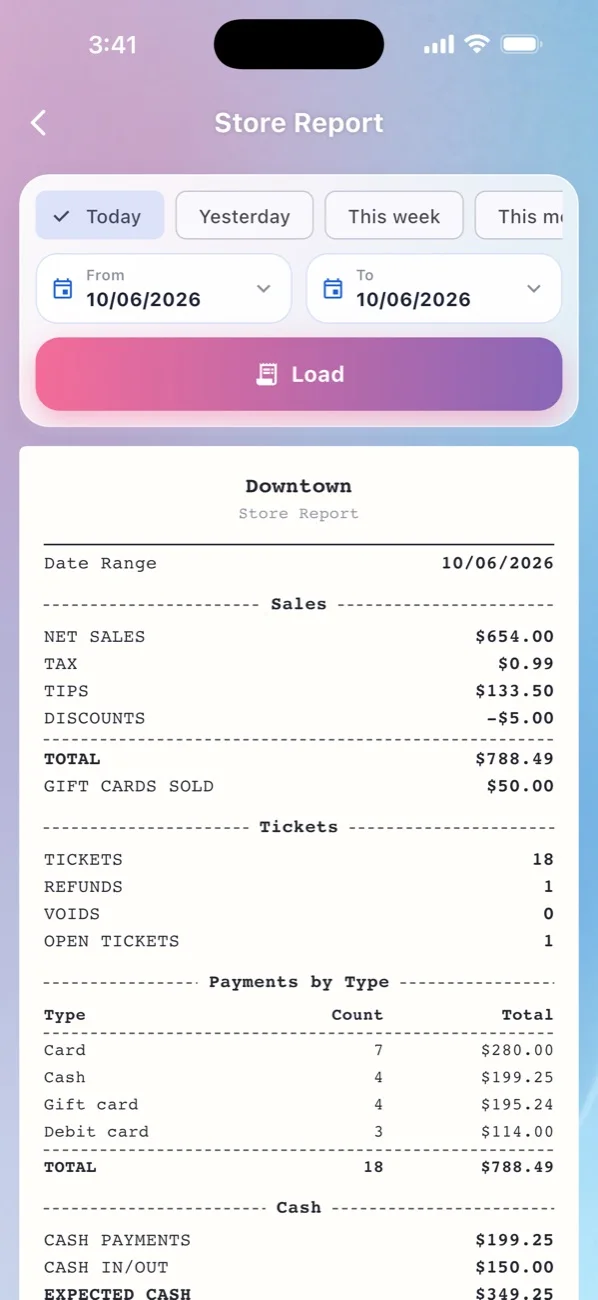
- Manage store tiles: Store Report (sales, tickets, payments by type, cash and, for a single day, the close-out), Employee Summary, Approvals, Alerts and What staff see.
- Approvals: Approve or Decline a time-off request, with an optional reason, and see who else is off then. Approved days block the technician's book on the POS and in online booking.
- Alerts: switches for Refunds, Voided tickets, Large sales (from an amount you set, $200 at first), New online bookings, the End-of-day summary sent when you close out on the POS, and Low ratings (1 or 2 stars). Each owner sets their own.
- What staff see: eight switches that hide amounts such as commission, non-cash tips or Pay 1 and Pay 2 from staff. They are the store's POS settings, so the registers follow them too.
- Appointments: everyone's book. Move or reassign changes the day, time or technician; the POS checks the store's hours and clashes, and the customer is not messaged.
- Announcements to everyone at the store or to chosen people, everyone's ratings in Reviews (lowest first), and the whole team's payroll in Payroll by choosing Everyone.
Note
Before staff can clock in from their phones, set the store's place once: stand in the store, open ME and tap Set to where I am now under Clocking in from phones. On the store's page in your back office you also set the pay period that pay slips follow (weekly, every 2 weeks or twice a month), and you can see each person's devices and sign one out.
Further reading
- Get EraPOS Hub and sign in - turning the app on for someone and signing in
- EraPOS Hub for technicians - what your team sees in the app
- Close out the day - the close-out behind the end-of-day report
- Run payroll - the pay figures the app's slips come from