

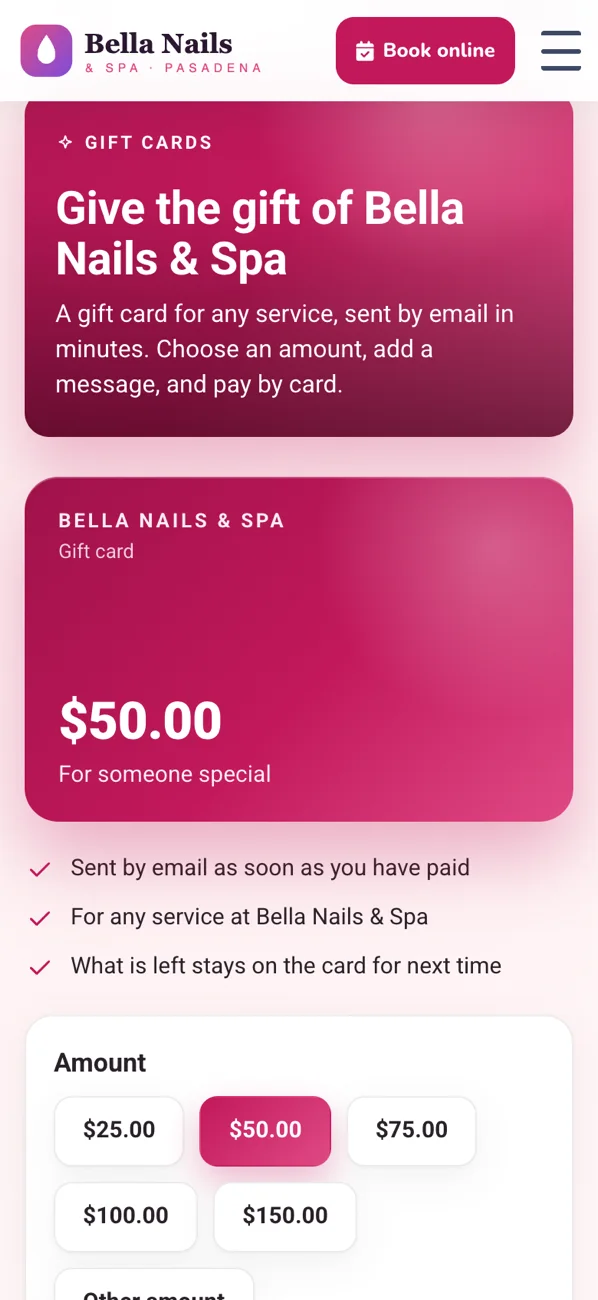
Clients buy gift cards on your website, the card is emailed to the person it is for, and every register uses it like any other gift card.
Switch it on
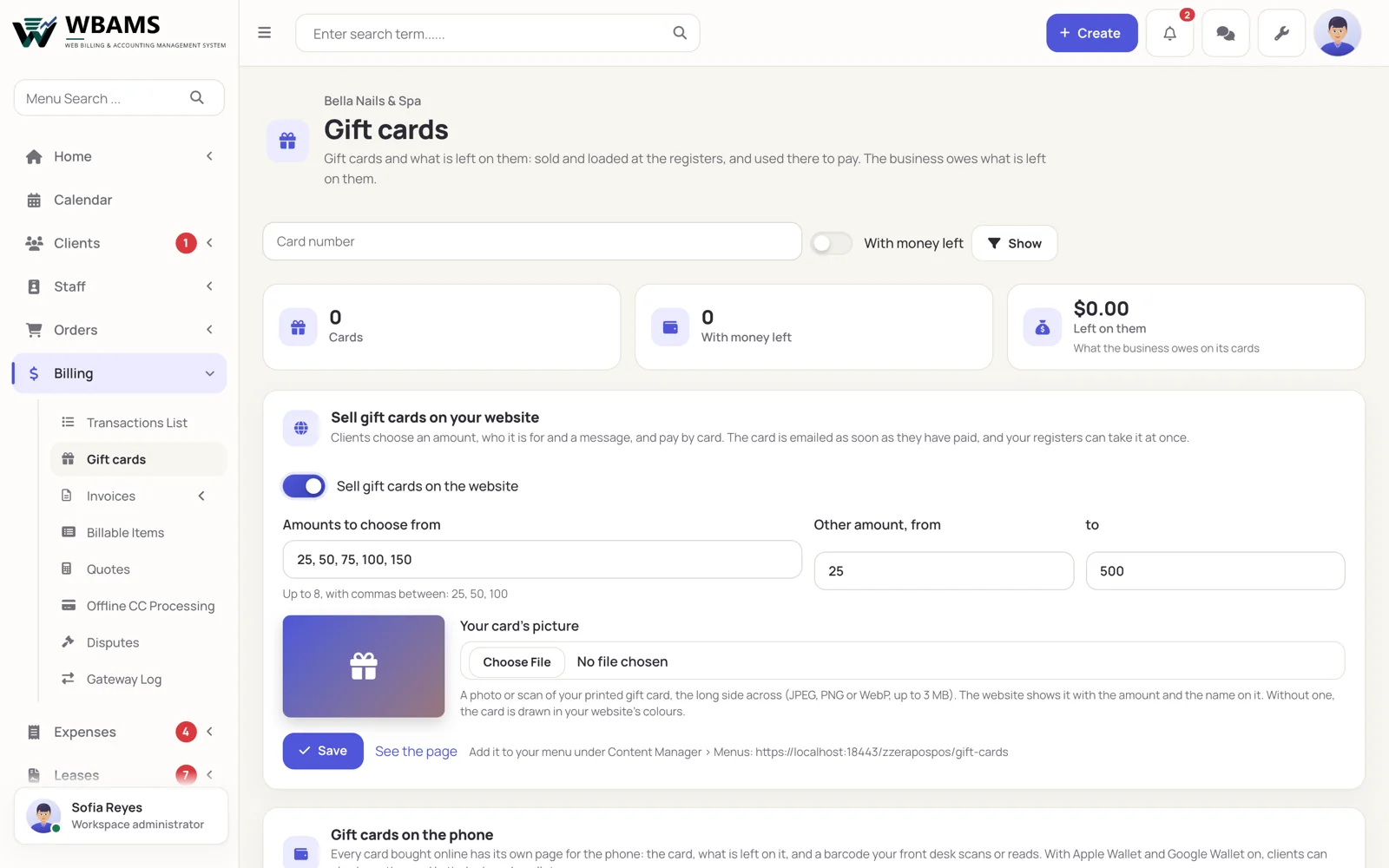
- In the back office, open Billing › Gift cards.
- Turn on Sell gift cards on the website.
- Choose the amounts clients pick from, and whether they can type another amount, from and to.
- Add a picture of your printed card if you like. Without one, the card is drawn in your website's colours.
- Press Save. Your website's gift card page is at /gift-cards.
What the client does
They choose an amount, who the card is for and a message, and see the card change as they type. They pay by card. Once paid, the card is made and emailed to the person it is for.
At the register
The card works like any gift card at every register. Each card also has its own phone page with what is left, its number and a barcode for the front desk.
Apple Wallet and Google Wallet
Enter your Apple pass certificate and your Google Wallet issuer details under Billing › Gift cards, and each card gets Add to Apple Wallet and Add to Google Wallet buttons. A pass certificate exported from Keychain Access is accepted; if a file is refused, the page says why.
Online gift cards are paid through Stripe, so your Stripe payment gateway must be set up.
Step by step, with pictures, in the EraPOS documentation: Gift cards online.